Welcome to Kinetic Secure Plus.
Your digital life just got safer. Get started now to take control of your online protection.

Kinetic Secure Plus is already working behind the scenes to help keep you safe.
Steps to get you started.

Key features and benefits.
These Kinetic Secure features are already active and helping protect your internet:


ID Monitoring & Breach Alerts
24/7 web surveillance to detect if personal data—such as email addresses, passwords, or credit card numbers—is exposed in breaches.

Enhanced internet security
Your gateway comes with built-in protection to block threats before they ever hit your devices.

Scam Protection
Real-time defense against today’s most sophisticated online threats, proactively blocking phishing sites, malicious links, and scam content before they reach you.
Plus, activate these additional features today:
Get real-time alerts if your identity is at risk ─ because it happens every 3 seconds.
Add Items: Start by adding your email address for 24/7 monitoring, then add other items like usernames and credit card numbers.
Confirm Email: Verify your contact email to receive notifications about breaches.
Monitor Alerts: ID Monitoring will automatically check for data breaches and alert you if your information is compromised.
Respond to Breaches: Follow the recommended actions in alerts to secure your information.
Stay safe on public Wi-Fi with encrypted browsing that protects your private data.
Activate VPN: Go to "Privacy VPN" and toggle the switch to secure your internet connection.
Virtual Locations: Change your virtual location for privacy and to access geo-blocked content.
Store and manage all your logins in one place. No more weak or repeated passwords.
Set Up: Open "Password Vault" and create a master password to secure your vault.
Store Passwords: Safely add passwords and payment card details.
Help protect your kids from harmful content and manage their online activity with easy-to-use controls.
Open Kinetic Secure: Launch the app and go to the "People & Devices" section.
Add a Child's Device: Click "+ Add device" and select "My child's device." Send the installation link to the child's device via email or SMS.
Install and Set Up: On the child's device, open the link, install the app, and log in. Assign a child profile to enable Family Rules.
Configure Parental Control Settings: App Control ─ Set limits on app usage or block certain apps. Bedtime ─ Restrict device use during specified nighttime hours. Content Filtering ─ Block access to inappropriate websites.
Manage Settings: Adjust settings as needed from your device or through the online management portal.
Whether you’re at home or mobile, stay protected from malware and risky websites everywhere you browse.
Manual Scan: Navigate to "Device Protection" > "Scan" to manually check for threats.
Automatic Scans: Ensure "Antivirus" is turned ON for daily scans.
Stay safer online with Kinetic Secure Plus. Scam Protection helps you browse confidently, bank securely, and avoid common online scams. Whether you use Chrome or Kinetic Secure Plus’s built-in Safe Browser, websites are checked automatically before you visit. If a site looks suspicious or harmful, we’ll block it and let you know.
Tip: Safe Browser works with Parental Controls. For a child’s device, set Safe Browser as the default browser and enable Family Rules for full protection.
Note: When using Safe Browser, there may be a brief delay (a few seconds) before a redirected malicious page is blocked.
Set up Browser Protection Chrome Protection keeps you safer while browsing in Chrome by showing safety ratings and blocking harmful sites. To enable it, the app needs certain permissions. To turn on Chrome Protection:
Open the Kinetic Secure Plus app.
From the main view, select Scam Protection.
Select Chrome Protection.
Select Continue and follow the prompts to:
Allow accessibility permissions (to check website safety).
Allow “display over other apps” (to show safety information while you browse).
Once enabled, you’ll see a small safety icon on the right edge of your screen in Chrome. Tap it for more details about the current site. The icon will dim after a moment; you can move it to another edge, hide it, or customize when it appears in settings. Harmful sites are blocked automatically. Hide the Chrome Protection overlay icon:
Open Kinetic Secure Plus.
Select Scam Protection.
Select Chrome Protection.
Tap the settings icon (top-right).
Choose which site types should show or hide the overlay icon.
Note: On some Android devices, a Chrome or system update may disrupt the connection to the accessibility service. If you stop seeing the overlay icon or banking protection, or unsafe pages aren’t blocked, go to your device settings and toggle the Chrome Protection accessibility permission Off, then On again.
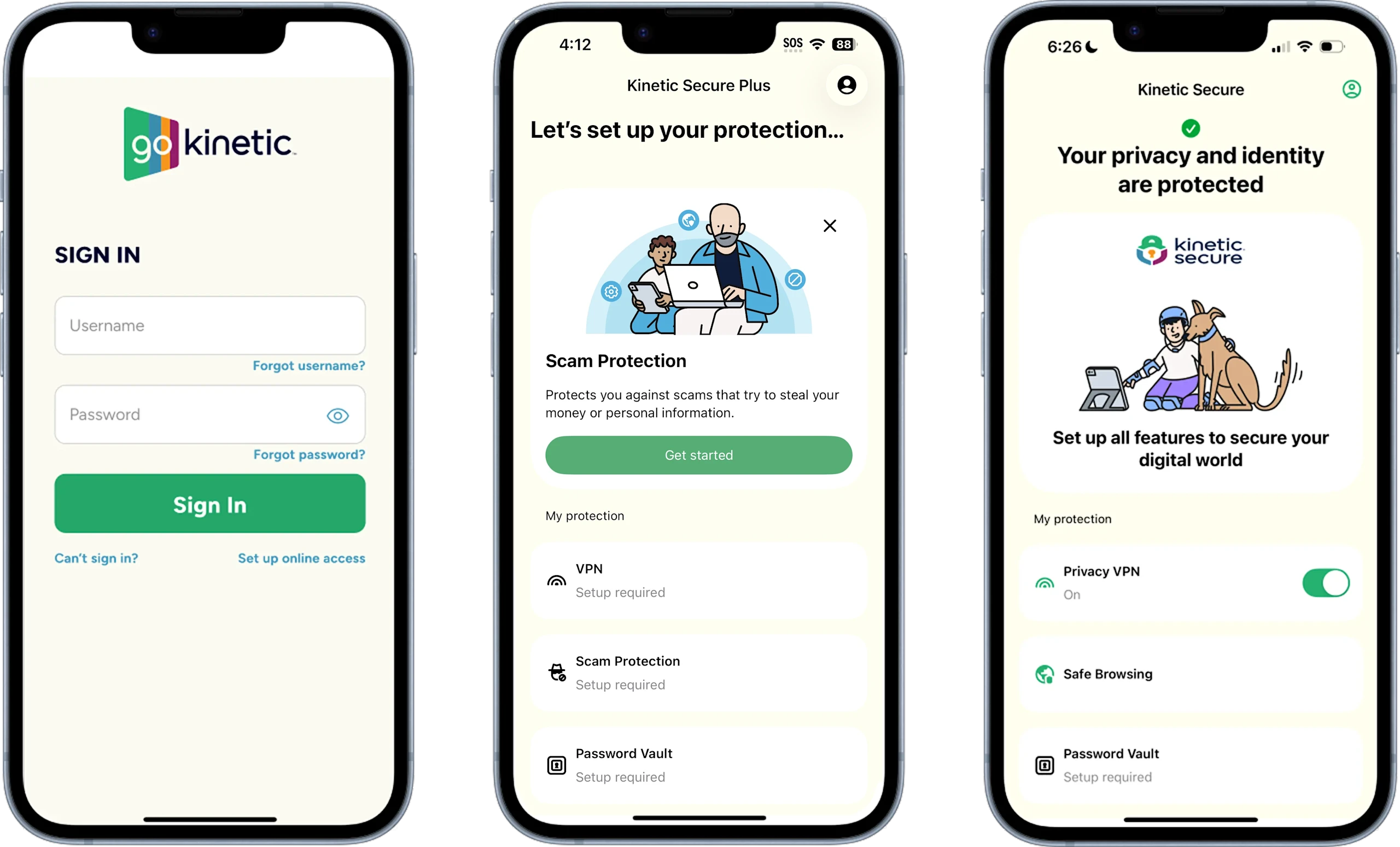
Kinetic Secure Quick Guide
- Click the link in the Welcome message that you received from your service provider.
- Follow the installation instructions.
- When the installation is complete, open the app.
- Select Accept and continue to agree to the End User License Terms.You may be asked to log in to your account when you start the app for the first time.
- As you are setting up protection for yourself, select Continue to finalize protection for your device.Note: The app shows you Smart Tasks at the top of each view to show you the most important task to do next.
Device Protection

- Select Get started.
- Read the overview of the protection, then select Get started.
- Select Continue and allow the app to access your files.
- Device Protection starts scanning your data.Once the scan is completed, you are shown the results. Either everything is fine and you can continue setting up the other protection features, or you need to delete the detected malicious apps or files.
Chrome Protection
- On the main view of the app, select Scam Protection > Get started.You can also start setup through the Scam Protection feature view.
- Select Chrome Protection.You are asked to allow permissions for the app. The app requires accessibility permissions to check the safety of websites that you visit, and permission to display content over other apps to show you the safety rating for websites.
- Select Continue and follow the on-screen instructions to allow the required permissions.Once you allow the permissions, your browsing on Chrome is protected.

Message Protection
- On the main view of the app, select Scam Protection.
- Select Message Protection > Get started.You are asked to allow permission to access your SMS messages and contacts, and you may also be asked to allow notifications.
- Allow the requested permissions.Once the necessary permissions are allowed, the app notifies you of any incoming messages that are identified as harmful. To see details about the detected messages, open the app and go to Scam Protection > Message Protection > Scam reports.

VPN
- Open the app.
- Select VPN > Get started if the Smart Task is visible on the main view of the app, or
- On the VPN feature page, select the toggle switch to turn VPN on.
- When you turn VPN on for the first time after installing the app, the Setting up VPN view opens.
- To allow the device to set up a VPN connection, select Allow > OK.VPN is turned on, connecting the app to the location offering the best possible connection.
- To turn VPN off again, under Privacy VPN, tap the toggle switch.

Password Vault
- On the main view of the app, select Password Vault.
- Select I'm a new user.
- Create a strong master password and select Continue.
- Repeat the master password and select Confirm.
- Create a recovery QR code by selecting Save as image.The code is saved as an image to your Gallery. If your device is running on Android 9 or earlier, you must allow Password Vault to access your photos, media, and files on your device.
- If your device supports biometric authentication, for example fingerprint access, and you have set it up, you can access your Password Vault faster by switching on Use biometric authentication to unlock and selecting Save.


Password autofill
- In the Password Vault feature view, select Settings > Autofill.
- Turn on Autofill and select the required autofill service from the device settings.
ID Monitoring
- Open the app.
- On the main view, select ID Monitoring.
- In the ID Monitoring view, select Add an entry.The Add new dialog opens, listing all the available types of information that you can choose.
- Select the type of item you want to add for monitoring.
- Enter the requested information and select Save.Monitoring starts looking for breaches with your personal data and shows you the result of the search. Note that to be able to see more detailed information about any leaked data and the recommended actions, make sure that you have confirmed your contact email address.
- If you have not yet confirmed your email address, open the confirmation email, and select the link to confirm that this is your email address.
Protecting additional devices and users
Digitally protect your whole home.

One subscription. Up to 11 devices.
Add up to 11 more devices and make sure everyone ─ and everything ─ is covered. From laptops to tablets to phones, now your entire digital household can stay protected. Here’s how to manage it all in the app.

Protect your own devices
Add a new device: Go to the People & Devices tab in the app, tap “+ Add device,” and select “My device.” Send the link to the device you want to protect, install the app, and you’re set.
Manage your devices: Track protection status, review settings, or remove devices anytime through the app or your online portal.

Set up protection for your kids
Family Rules made simple: Limit screen time and block inappropriate content all in one place.
How to add a child’s device: Tap “+ Add device,” select “My child’s device,” and create or choose a child profile. Send the install link, complete setup, and adjust Family Rules as needed.
Need to update settings later? Just edit the child profile in the app. Some Family Rules settings, like content filters, may require toggling the VPN off and back on again after 24 hours.

Share protection with others
Add a friend or family member: Invite them by name and email. They’ll get a link to create their own account and start protecting their devices under your plan.
What they’ll do: Once invited, they’ll log in, change their password, and install the app on their device.

Remove a user or release a license
Stopping protection: Remove a user from your account via the app or portal. This will stop protection on their devices.
Freeing up a license: Don’t need coverage on a device anymore? Release that license to make room for another. Releasing doesn’t uninstall the app, you’ll need to do that manually.

Switch to a new device
Upgrading? Here’s how to transfer protection: If you're out of available licenses, release one from an old device first. Then install Kinetic Secure Plus on your new device like usual. Easy.
Scam Protection
- Avoid online banking scams
- Block phishing sites and malicious links
- Filter and block SMS scam messages instantly